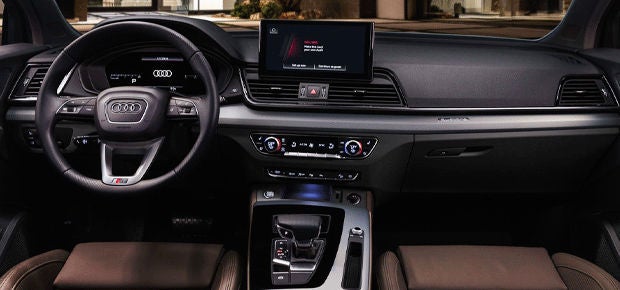
Apple CarPlay transforms your Audi's infotainment system by seamlessly integrating your iPhone's features directly into your Audi's Multi Media Interface (MMI) display. The system offers intuitive controls and voice commands through Siri that make it easy to navigate applications, play music, send messages, and get directions while maintaining your focus on the road.
Modern Audi vehicles, including all new models, feature Apple CarPlay as standard, and many newer models come equipped with wireless CarPlay capabilities. Discover how to enhance your driving experience with this detailed guide from our experts at Audi Virginia Beach in Virginia.
Compatible Audi Models
Audi offers Apple CarPlay across its lineup, with compatibility extending to the following models and years:
- A3, A4, A5, A6, and A7 (2017 to present)
- A8 (2019 to present)
- Q3 (2020 to present)
- Q4 e-tron and Q4 Sportback e-tron (2022 to present)
- Q5 (2018 to present)
- Q7 (2017 to present)
- Q8 (2019 to present)
- e-tron (2019 to present)
- e-tron Sportback (2021 to present)
- e-tron GT (2022 to present)
- TT and R8 (2017 to present)
Wireless Apple CarPlay availability varies by model year and trim level and depends on your vehicle's infotainment system version and model specifications. If you have any questions about specific features in your vehicle, contact us at Audi Virginia Beach, where our team will be happy to help you.
Step-By-Step Guide to Connecting Apple CarPlay
How you set up Apple CarPlay in your Audi will depend on whether you're using a wired or wireless connection.
For Wired Connection
Follow these steps to connect Apple CarPlay using a USB cable:
- Update your iPhone to the latest iOS version.
- Connect your iPhone to your Audi's USB port using an Apple-certified USB-to-Lightning cable.
- Select “Phone Apps” or “Smartphone Interface” on the Audi MMI screen.
- Choose “Apple CarPlay” from the available options.
- Follow the prompts on both your iPhone and the Audi MMI to complete the setup.
For optimal performance and stability, ensure you're using a high-quality, Apple-certified Lightning cable. If you're a first-time user, you may need to enable CarPlay in your iPhone settings. A wired connection often provides more reliability than wireless, particularly when using different iOS versions. Check the condition of your Lightning cable regularly, as faulty cables are a common cause of connectivity issues.
For Wireless Connection
To set up wireless Apple CarPlay in compatible Audi models:
- Enable Bluetooth and Wi-Fi on your iPhone.
- Select “Phone Apps” or “Smartphone Interface” on the Audi MMI.
- Choose “To connected devices” and select your iPhone.
- Go to “Settings” then “Bluetooth” on your iPhone and select your Audi's Bluetooth device.
- Accept the “Use CarPlay” prompt on your iPhone.
The initial pairing process uses Bluetooth, but your phone will establish a private Wi-Fi connection with the MMI for CarPlay functionality. For the best connection stability, allow your phone to connect via Bluetooth first and automatically transition to Wi-Fi. It's recommended to start your car and open the myAudi application before shifting into gear, which will help to maintain a stable wireless CarPlay connection.
Setting Up Siri for Hands-Free Control
Siri integration with Apple CarPlay provides safe, hands-free control of your iPhone while driving. To use Siri in your Audi:
- Press and hold the voice command button on the steering wheel.
- Touch and hold the Siri icon on the CarPlay screen.
- Say "Hey Siri" (in supported vehicles only).
Common voice commands include:
- "Navigate to [destination]."
- "Read my latest message."
- "Call [contact name]."
- "Play [song/artist/playlist]."
Troubleshooting Common Issues
If you experience problems with Apple CarPlay in your Audi, try these solutions:
- Delete your phone from the car's Bluetooth and Wi-Fi connections, then reconnect via Bluetooth only.
- Start your car and open the myAudi application before shifting into gear.
- Check your Lightning cable for damage and replace it if necessary.
- Perform a factory reset of the Smartphone Connect feature in Audi MMI settings.
- Ensure both your iPhone and Audi MMI system have the latest software updates.
Tips for Maximizing Your CarPlay Experience
Enhance your Audi CarPlay experience with these helpful tips:
- Organize your CarPlay home screen to prioritize your frequently used applications.
- Enable the “Do Not Disturb While Driving” mode for safer travel.
- Use third-party navigation applications such as Waze for additional traffic features.
- Download music and podcasts in advance to minimize your data usage.
- Adjust your screen brightness to optimize visibility and reduce battery drain.
For cellular data usage while connected to CarPlay via Wi-Fi, disable “Use Data Over Wi-Fi” in your connection settings. If using the car's Wi-Fi hot spot causes cellular data loss, select “Forget This Network” for the car's Wi-Fi on your iPhone. Consider downloading content before your journey to limit data usage while driving.
Enhance Your Audi Experience With Apple CarPlay
The integration of Apple CarPlay provides a safer, more convenient way to access your iPhone's features while driving. The Audi smartphone interface combines sophisticated technology with Apple's user-friendly design to give you an enhanced driving experience.
For personalized assistance with Apple CarPlay setup or other features in your Audi, contact us at Audi Virginia Beach. Our team is ready to help you maximize the use of your vehicle's technology. We can provide guidance on wireless connectivity options, troubleshoot any issues you may encounter, and ensure you're getting the most out of your Audi's advanced features.